
Transform your AI development workflow with seamless Model Context Protocol integration and AWS documentation access
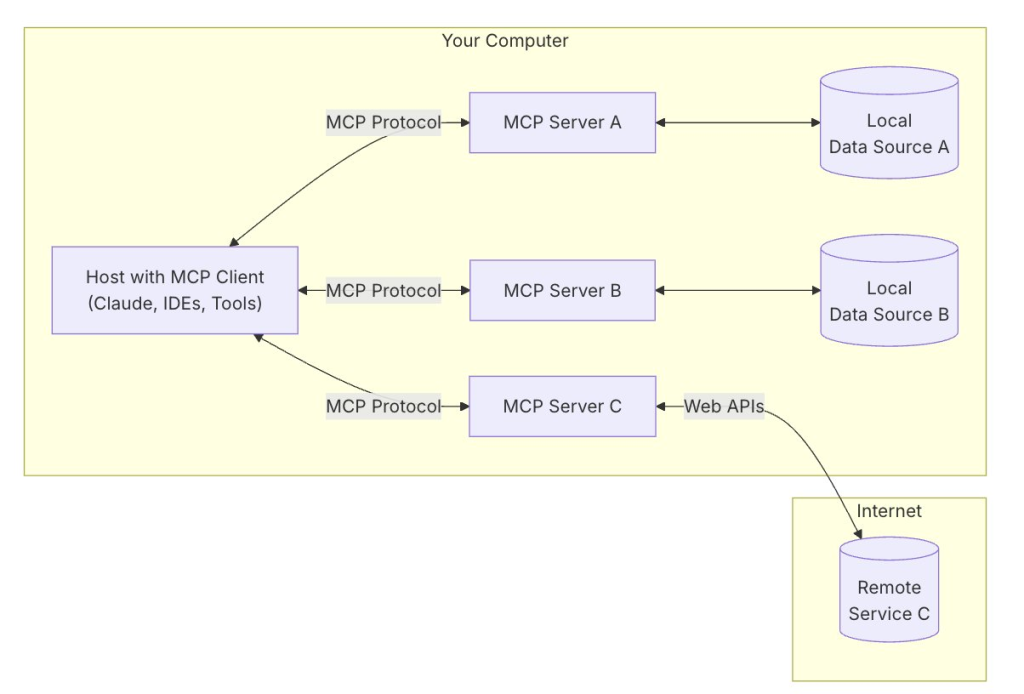
Introduction: The Evolution of AI-Powered Development
The artificial intelligence landscape has undergone a revolutionary transformation with the introduction of the Model Context Protocol (MCP) by Anthropic. This groundbreaking open-source standard enables seamless connectivity between AI assistants and external systems, fundamentally changing how developers interact with documentation, tools, and data sources.
In this comprehensive guide, we’ll explore how to configure the AWS Documentation MCP Server as a local server in Claude Desktop, examining both traditional host-based installations and modern containerized approaches using Docker. Whether you’re a beginner taking your first steps into MCP configuration or an intermediate developer seeking to optimize your AI workflow, this tutorial provides the technical depth and practical guidance you need.
Understanding the Model Context Protocol Ecosystem
What Makes MCP Revolutionary?
The Model Context Protocol represents a paradigm shift in AI application architecture. Unlike traditional approaches where AI models operate in isolation, MCP establishes a standardized communication layer that enables:
- Dynamic Tool Discovery: AI agents can automatically identify available capabilities
- Contextual Data Access: Real-time integration with external data sources
- Standardized Integration: Consistent interfaces across different AI platforms
- Extensible Architecture: Easy addition of new capabilities without core system modifications
The MCP Architecture: Clients, Servers, and Communication
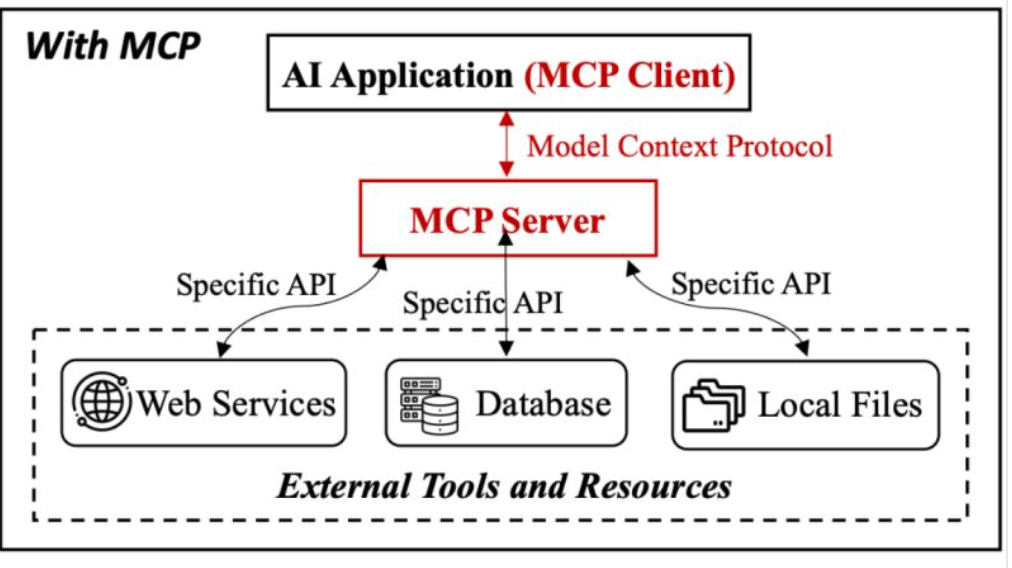
The MCP ecosystem operates on a client-server architecture:
MCP Clients (like Claude Desktop) initiate requests and consume capabilities provided by servers. They handle user interactions, manage server connections, and orchestrate tool execution with appropriate user consent.
MCP Servers expose specialized functionality through standardized interfaces. These lightweight programs can provide anything from filesystem access to complex API integrations, running as separate processes that communicate with clients through JSON-RPC protocols.
The AWS Documentation MCP Server: Bridging AI and Cloud Knowledge
Why AWS Documentation Integration Matters
Amazon Web Services documentation encompasses thousands of pages covering hundreds of services, making it challenging for developers to locate specific information quickly. The AWS Documentation MCP Server transforms this challenge into an opportunity by providing:
- Intelligent Search Capabilities: Natural language queries across AWS documentation
- Contextual Recommendations: Related content discovery based on current tasks
- Real-time Documentation Access: Always up-to-date information without manual browsing
- Seamless Integration: Direct access within your AI development environment
Server Capabilities and Features
The AWS Documentation MCP Server offers three primary tools:
- Documentation Search: Comprehensive search across AWS service documentation
- Page Reading: Detailed content extraction from specific documentation URLs
- Content Recommendations: Discovery of related documentation based on current context
Local MCP Server Installation: The Traditional Approach
Prerequisites and Environment Setup
Before configuring the AWS Documentation MCP Server, ensure your development environment meets these requirements:
System Requirements:
- Claude Desktop: Latest version for macOS or Windows (Linux support coming soon)
- Python Environment: Python 3.8+ with
uvx(UV tool runner) installed - Network Access: Reliable internet connection for documentation retrieval
Configuration Process: Step-by-Step Implementation
- Click on Claude menu bar option
- Click on settings…
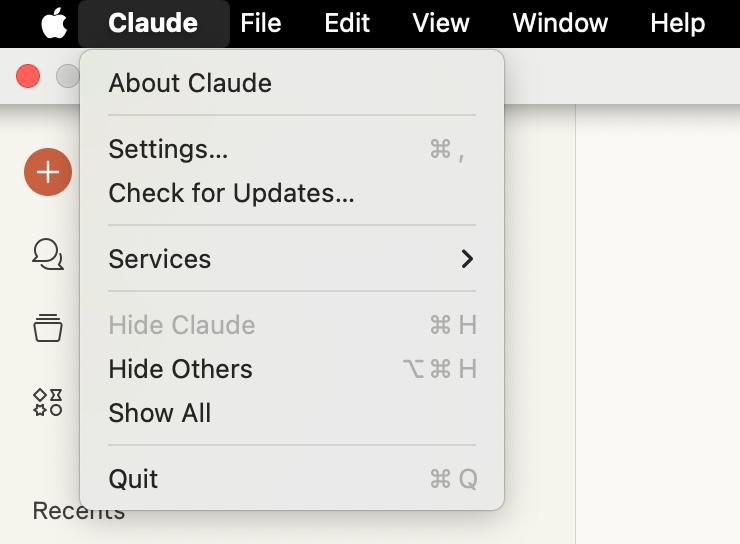
- Click Developer option for list of configured MCP servers or to edit config file.
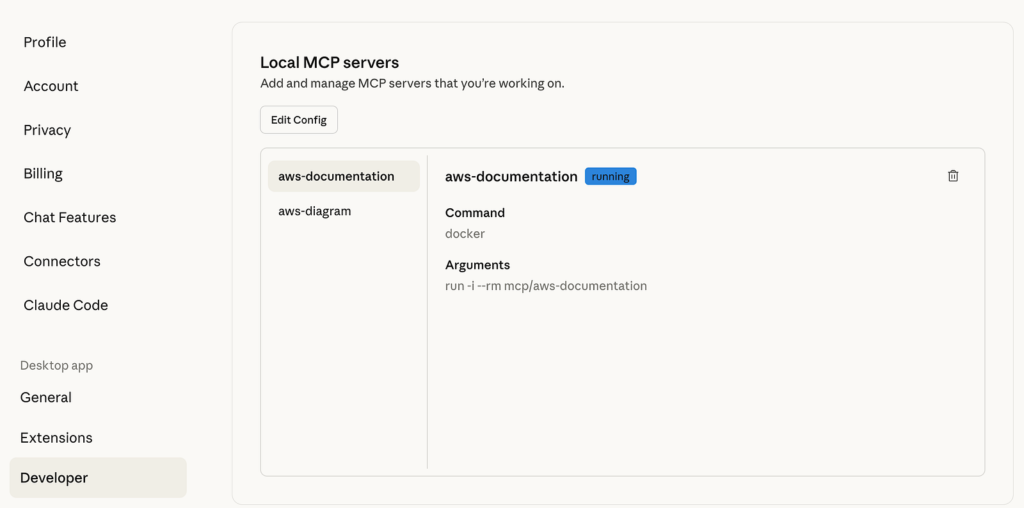
Step 1: Access Claude Desktop Configuration
Navigate to Claude Desktop settings and access the Developer section. The configuration file location varies by operating system:
- macOS: ~/Library/Application Support/Claude/claude_desktop_config.json
- Windows: %APPDATA%\Claude\claude_desktop_config.json
Step 2: Configure the AWS Documentation Server
Add the following configuration to your claude_desktop_config.json file:
{
  "mcpServers": {
    "aws-documentation": {
      "command": "uvx",
      "args": ["awslabs.aws-documentation-mcp-server@latest"],
      "env": {
        "FASTMCP_LOG_LEVEL": "ERROR",
        "AWS_DOCUMENTATION_PARTITION": "aws"
      },
      "disabled": false,
      "autoApprove": []
    }
  }
}
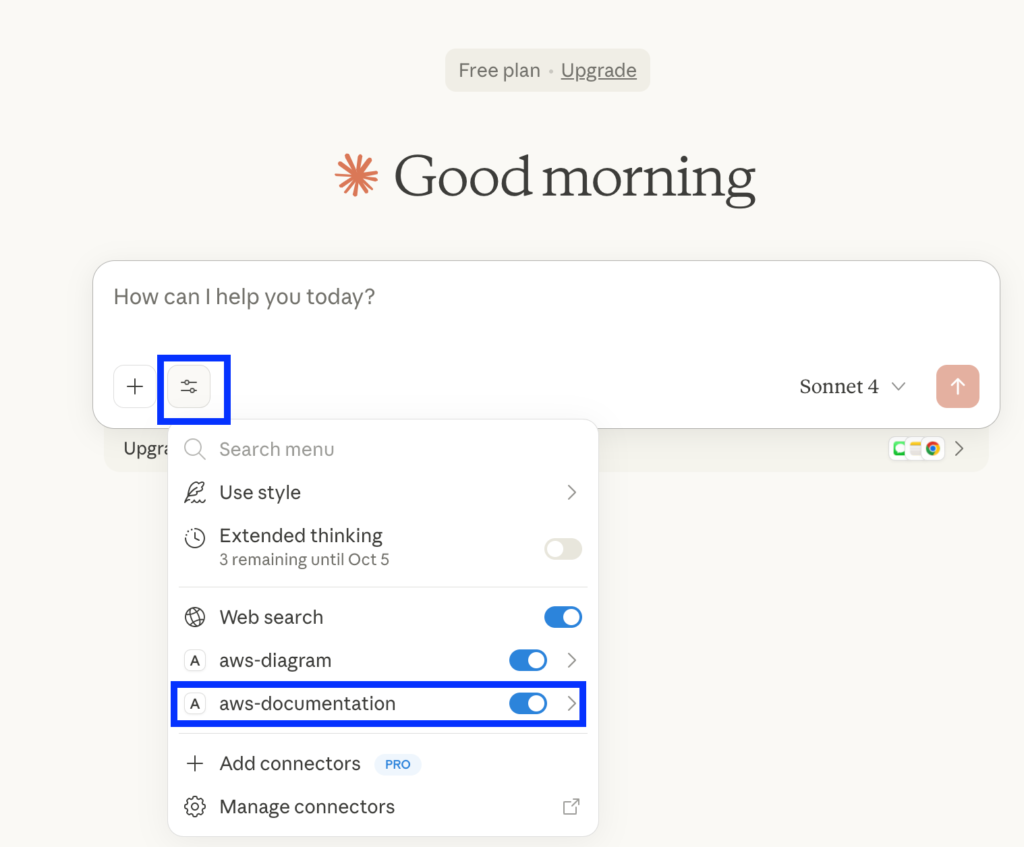
Step 3: Server Activation and Verification
After saving the configuration file:
- Restart Claude Desktop completely to load the new configuration
- Verify Connection: Look for the server indicator in the Claude interface
- Test Functionality: Submit a test query to confirm proper operation
Local Installation Challenges and Limitations
While local installation provides direct control over server configuration, several challenges emerge:
Environment Conflicts:
- Python version incompatibilities with existing installations
- Package dependency conflicts between different MCP servers
- System-wide pollution of Python environments
Security Concerns:
- Full host system access for MCP server processes
- Potential exposure of sensitive files and credentials
- Lack of process isolation between different servers
Maintenance Overhead:
- Manual updates for server packages
- Complex troubleshooting when dependencies break
- Platform-specific configuration variations
Resource Management:
- Uncontrolled resource consumption by server processes
- Difficulty managing multiple concurrent servers
- No built-in resource limiting mechanisms
Container-Based MCP Deployment: The Modern Solution
Docker’s Role in MCP Server Architecture
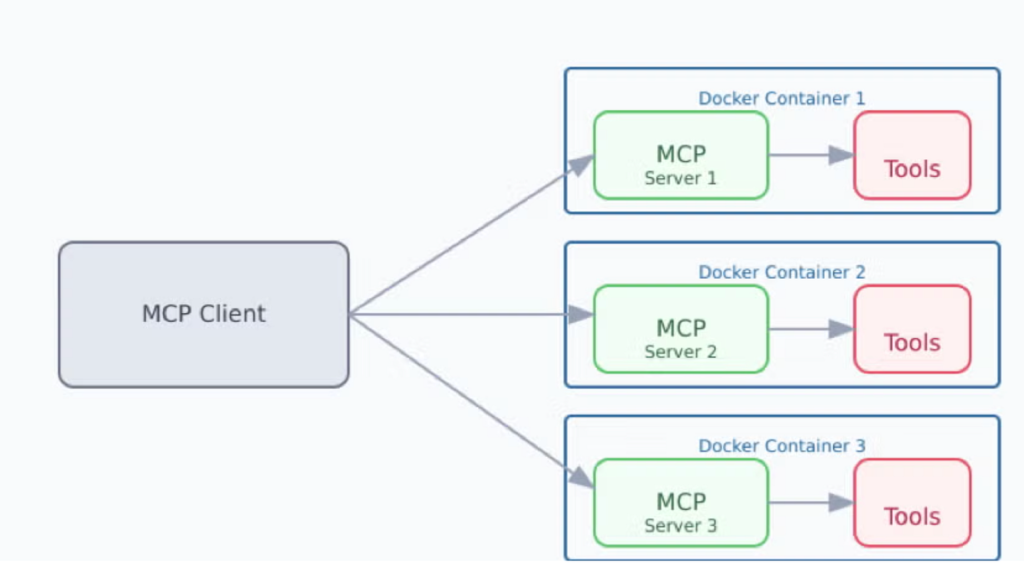
Docker revolutionizes MCP server deployment by addressing the fundamental challenges of traditional installations. Containerization provides:
Environment Isolation: Each MCP server runs in its own containerized environment, preventing conflicts between different servers or with host system dependencies.
Consistent Deployment: Docker images ensure identical runtime environments across different development machines and operating systems.
Enhanced Security: Container boundaries provide process isolation and limit access to host system resources.
Simplified Distribution: Pre-built container images eliminate complex installation procedures and dependency management.
Container Configuration for AWS Documentation Server
While the AWS Documentation MCP Server doesn’t currently have an official Docker image, the containerization principles apply broadly across the MCP ecosystem. Here’s how container-based deployment works:
Standard Container Configuration Pattern:
{
  "mcpServers": {
    "containerized-server": {
      "command": "docker",
      "args": [
        "run",
        "-i",
        "--rm",
        "--init",
        "-e", "DOCKER_CONTAINER=true",
        "mcp/aws-documentation:latest"
      ]
    }
  }
}
Container Benefits: Security, Isolation, and Scalability
Enhanced Security Model:
- Process sandboxing prevents unauthorized system access
- Limited filesystem visibility reduces data exposure risks
- Network isolation controls external communication
- Resource constraints prevent system resource exhaustion
Development Workflow Advantages:
- Reproducible environments across team members
- Simplified onboarding for new developers
- Consistent behavior across different host platforms
- Easy server version management and rollbacks
Operational Benefits:
- Automatic cleanup of temporary resources
- Standardized logging and monitoring integration
- Scalable deployment across multiple environments
- Built-in health checking and restart mechanisms
Integration Examples and Use Cases
AWS Documentation Queries
Practical Usage Examples:
- Service Discovery: “What are the key features of Amazon ECS Fargate?”
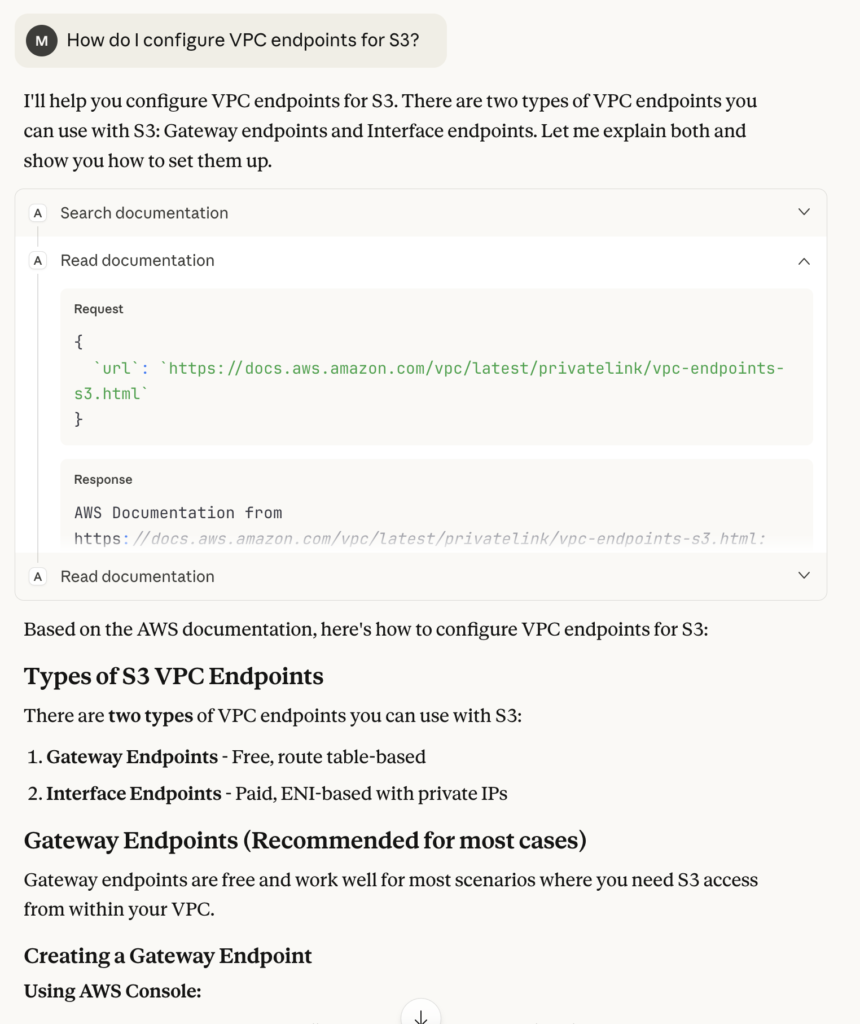
- Configuration Guidance: “How do I configure VPC endpoints for S3?”
- Best Practices: “What are the security best practices for Lambda functions?”
- Troubleshooting: “How do I resolve CloudFormation stack rollback issues?”
MCP servers are programs that run on your computer and provide specific capabilities to Claude Desktop through a standardized protocol. Each server exposes tools that Claude can use to perform actions, with your approval. MCP Server provided tools action require your explicit approval before execution, ensuring you maintain full control over what Claude can access and modify.
Advanced Configuration and Best Practices
Security Considerations for MCP Deployment
Host-Based Security:
- Principle of Least Privilege: Grant minimal necessary permissions to MCP servers
- User Account Isolation: Run servers under dedicated user accounts
- File System Restrictions: Limit accessible directories through configuration
- Network Segmentation: Control outbound network access where possible
Container Security:
- Image Verification: Use cryptographically signed container images
- Regular Updates: Maintain current versions to address security vulnerabilities
- Runtime Security: Implement container runtime protection mechanisms
- Secret Management: Avoid embedding credentials in container images
Additional Resources
- Official MCP Documentation: https://modelcontextprotocol.io/
- AWS MCP Servers: https://awslabs.github.io/mcp/
- MCP Registry: https://registry.modelcontextprotocol.io
- GitHub Registry: https://github.com/modelcontextprotocol/servers
- Docker Hub MCP Namespace: https://hub.docker.com/u/mcp
- Community Discussions: https://github.com/orgs/modelcontextprotocol/discussions

